Voice Connect App
Voice Connect App allows employees to make and receive calls from any device, at any location, with only one phone number, one dial plan, one voice mailbox, and a unified set of features. The following would allow you to configure the fixed and mobile phones you would like to link to this account.
To configure Voice Connect App, click on Voice Connect App tab and the below screenshot will be displayed with all the users which had subscribed to this service.
And to create/ manage existing phone number of each user, please click on the action button under Phone Number column of the table.
1. Add Phone Number
Click on the button. "Add Phone Number" modal will be displayed.
Enter the fields for the entry and press "Save" button to create a new phone number.
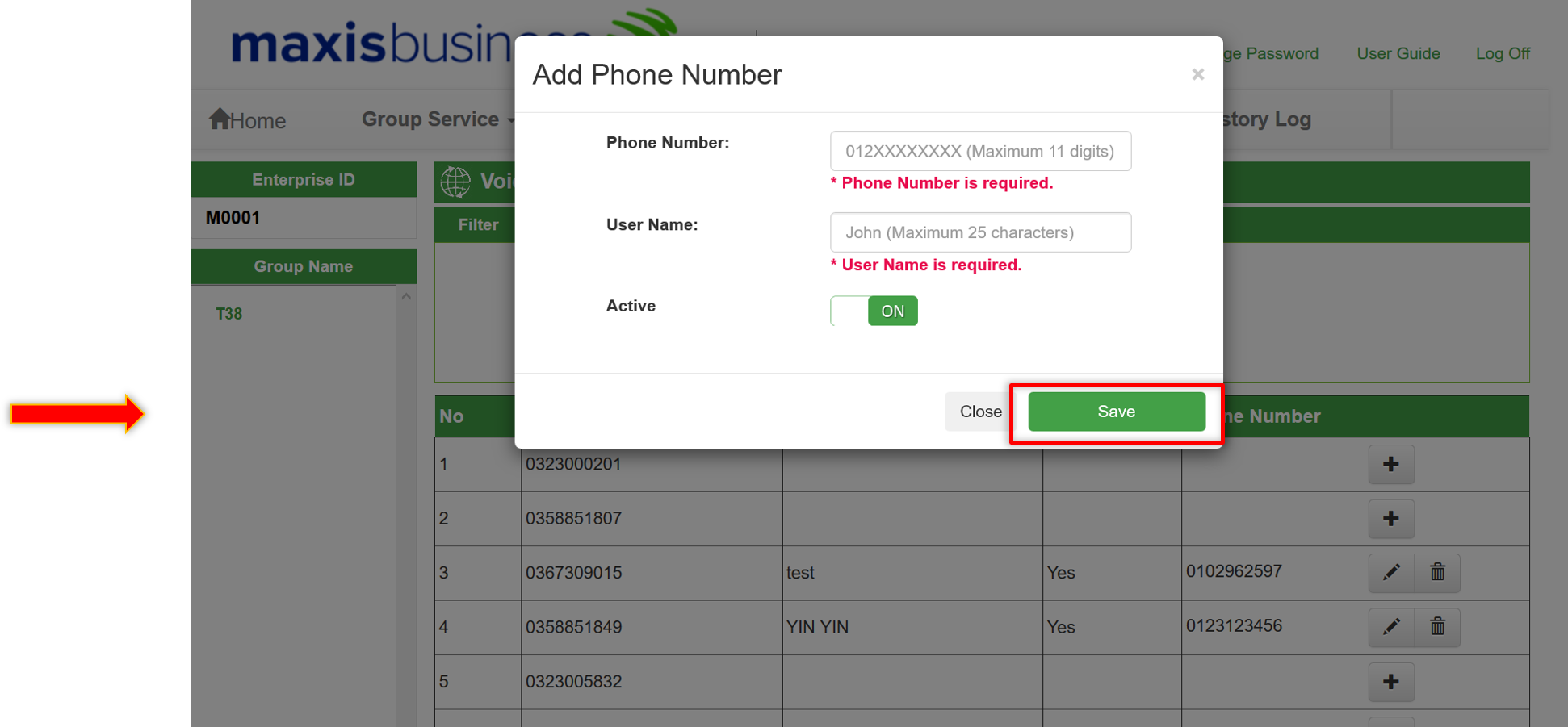
The meaning of the fields are:
| Field |
Description |
| Phone Number |
The phone number to be used as the Voice Connect App number. |
| User Name |
The description should allow you to understand, at a glance, why you have specified this phone number. |
| Active |
Toggle "On" or "Off". This enables or disables this number for Voice Connect App. |
2. Modify Phone Number
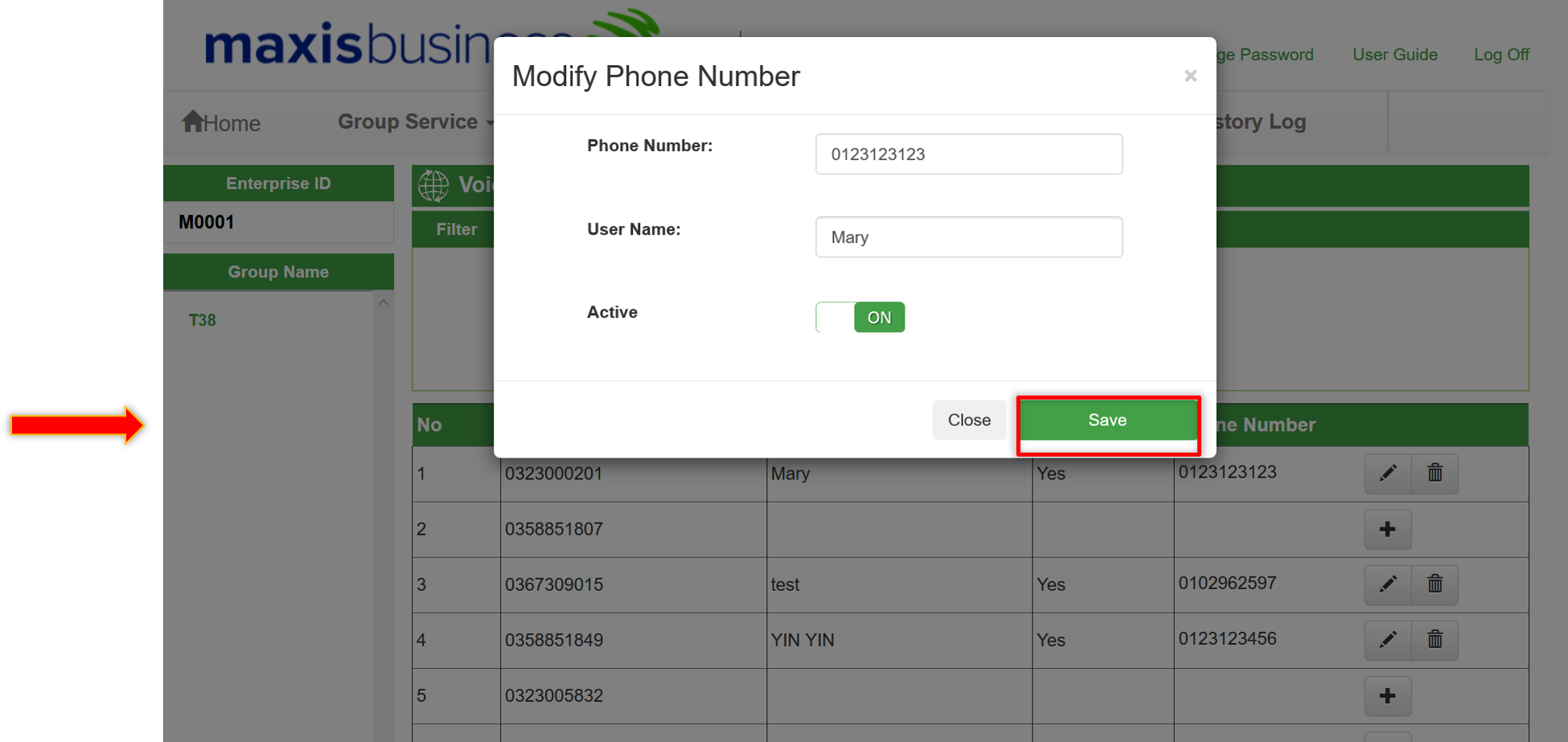
To modify the existing Voice Connect App entry, click on the button of the entry.
The "Modify Phone Number" modal would be displayed with the existing entry settings.
Modify the fields for the entry and press "Save" button to update the changes.
3. Delete Phone Number
If this entry is no longer required, it can be removed by pressing button.
And the confirmation modal would be appeared upon the delete button click event.
The entry will be deleted upon the click "OK" button of the confirmation modal.